People don’t wait around for slow pages. If your site drags, visitors leave and search engines notice. These five culprits cause most of the trouble.
Why speed matters
Slow pages frustrate visitors, and search engines take page experience into account. Even a modest improvement can mean fewer people leaving before they see what you offer.
Start by measuring
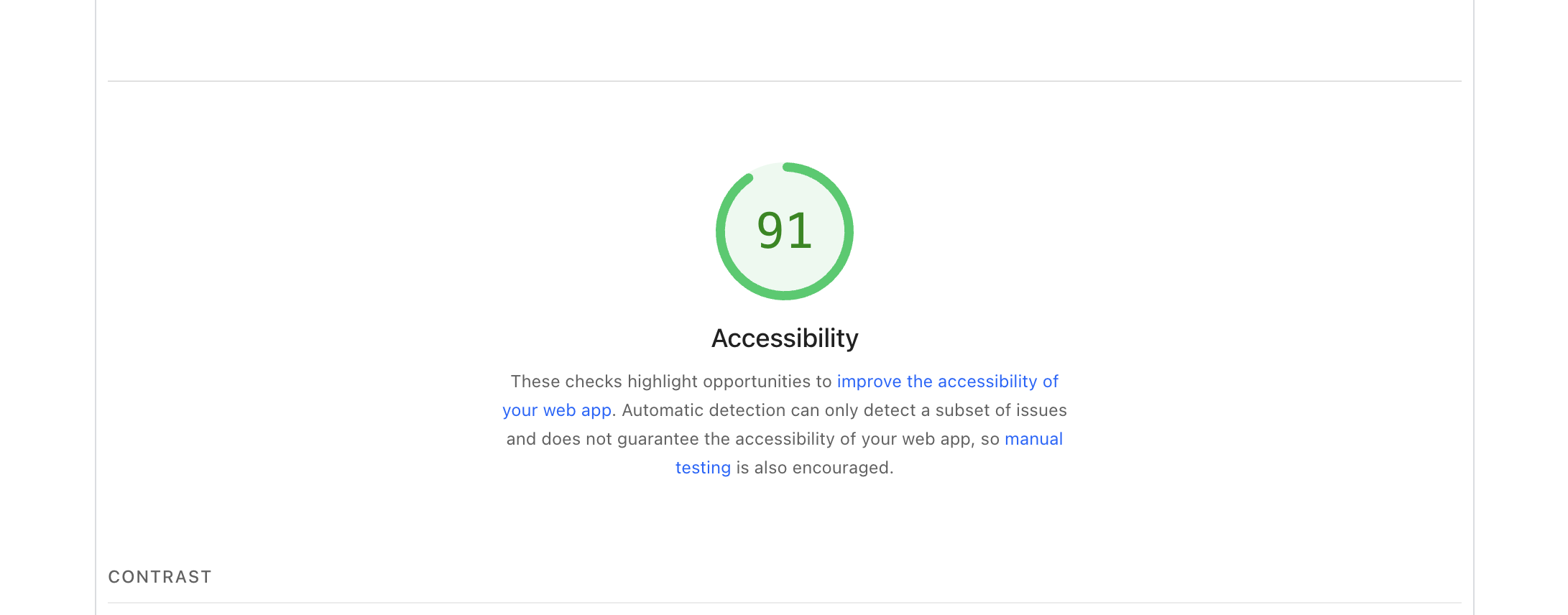
Get a baseline before you change anything, so you know what’s actually helping. Run your home page and one other key page through Google’s PageSpeed Insights (it’s free), and look at the mobile results first, since that’s where most sites do worst. It reports three main measures. As Google currently defines them, a “good” result looks like this:
| Measure | What it tells you | Google’s “good” target |
|---|---|---|
| LCP (Largest Contentful Paint) | How fast the main content appears | 2.5 seconds or less |
| INP (Interaction to Next Paint) | How quickly the page responds to taps and clicks | 200 milliseconds or less |
| CLS (Cumulative Layout Shift) | How much the page jumps around while loading | 0.1 or less |
Thresholds can change, so confirm the current numbers in Google’s documentation.
Quick diagnosis
| What you notice | Likely cause | Start with |
|---|---|---|
| The page is blank for a few seconds | Slow server or no caching | Fixes 3 and 4 |
| A big image shows up late | Oversized or unoptimized images | Fix 1 |
| The page jumps around as it loads | Images without set sizes, late-loading fonts or ads | Fixes 1 and 5 |
| Taps and clicks feel laggy | Too much JavaScript | Fixes 2 and 5 |
| Your dashboard is slow too | Weak hosting or heavy plugins | Fixes 2 and 3 |
1. Oversized images
A photo straight from a camera can be many megabytes. Resize images to the size they’re actually shown, compress them, and use modern formats like WebP where supported. Turn on lazy loading so images below the fold load later.
How to fix it:
- Resize before you upload. A 4,000-pixel-wide photo shown in an 800-pixel space wastes download time. Resize to roughly the largest size it’s displayed.
- Compress. Free tools like Squoosh, or an image optimization plugin on WordPress, can shrink files dramatically with little visible change.
- Use modern formats. WebP (and AVIF where supported) are usually much smaller than JPEG or PNG.
- Set image dimensions. Defining width and height stops the page from jumping as images load.
- Lazy-load the rest, but not the top. Images below the fold can load later. The main image at the top should load right away, since it’s often what the speed test is measuring.
Watch out for: auto-playing background videos and giant slider images. They’re among the heaviest things on a page.
2. Too many plugins
Every plugin adds code. Remove the ones you don’t use, and replace heavy ones with lighter options. Keep the ones you keep updated, which also helps security.
The number of plugins matters less than their quality. One poorly built plugin can slow a site more than ten good ones.
How to fix it:
- List what’s installed. Write down every active plugin and what it does.
- Remove what you don’t use. Delete it, don’t just deactivate it.
- Combine overlapping jobs. If three plugins each do a small piece of SEO or security, consider one that does it well.
- Test the heavy ones. A tool like Query Monitor shows which plugins add the most load time.
- Check for abandoned plugins. If one hasn’t been updated in a long time, replace it. It’s a speed and a security risk.
Watch out for: plugins that load their scripts on every page when they’re only needed on one, such as a contact form plugin running on your blog posts.
3. Weak or crowded hosting
Cheap shared hosting can be slow when the server is busy. If your site has outgrown its plan, upgrading hosting can make a bigger difference than any other tweak. If you manage your own server, make sure it’s secured too. Here are my guides to free SSL on Nginx and Apache.
Signs your hosting is the problem:
- Even a nearly empty test page loads slowly
- Your admin dashboard drags
- Speed varies wildly by time of day
- Your speed report shows a long wait before anything appears (often called time to first byte)
How to fix it:
- Compare plan types. Basic shared hosting puts many sites on one server. Managed WordPress hosting or a small virtual server usually performs better for a business site.
- Use a supported PHP version. Older versions are slower and less secure. This ties in with the update risks I covered in PHP2Shell: Two Critical PHP Flaws.
- Make sure HTTPS is set up properly, since modern speed features rely on it.
- Consider a CDN. A content delivery network serves your images and files from locations closer to your visitors.
- Ask your host what they offer for caching and performance before you pay for an upgrade.
4. No caching
Without caching, your server rebuilds each page from scratch for every visitor. A caching plugin or server-level cache saves ready-made pages and serves them quickly.
There are a few kinds of caching, and they work together:
- Page cache: saves finished pages so the server doesn’t rebuild them every time
- Browser cache: lets returning visitors reuse files they already downloaded
- Object cache: speeds up database lookups on busy or dynamic sites
- CDN cache: stores copies of your files around the world
How to fix it:
- Turn on page caching through your host or a caching plugin. Don’t run two caching plugins at once.
- Enable browser caching so repeat visitors load pages faster.
- Test while logged out, since many sites skip caching for logged-in users.
- Clear the cache after you make changes, so visitors don’t see old content.
Watch out for: online stores. Cart, checkout, and account pages should be excluded from page caching.
5. Heavy fonts and scripts
Too many custom fonts, tracking scripts, chat widgets, and embeds slow things down. Keep only what earns its place, and load the rest after the main content.
How to fix it:
- Limit your fonts. Two font families, and only the weights you use, is plenty. Make sure text shows right away instead of waiting for the font to load.
- Audit third-party scripts. List every tracker, chat widget, social feed, and pixel. Remove the ones nobody looks at.
- Delay what isn’t urgent. Chat widgets and analytics can load after the main content.
- Click-to-load video embeds. A video player can add a surprising amount of weight, so show a preview image and load the player when someone clicks.
- Check the “unused JavaScript” warning in your speed report. It points to what you can trim.
Bonus fixes
- Clean up your database. Old post revisions and expired data pile up over time.
- Be careful with minifying and combining files. It can help, but test afterward, because it sometimes breaks layouts.
- Choose a lean theme. Heavy page builders and feature-packed themes add weight to every page.
Check your speed
Free tools such as Google’s PageSpeed Insights show what’s slowing your pages and suggest fixes. Test your home page and one other important page, fix the biggest item, then test again.
The order I’d tackle them
Start with the cheapest wins and work up:
- Images, because they’re usually the biggest and easiest fix
- Caching
- Plugins
- Fonts and scripts
- Hosting, if the problem is still there
Change one thing at a time and re-test, so you know what helped.
Keep a speed log
| Date | What I changed | Mobile score | LCP | Notes |
|---|---|---|---|---|
How often to test
Test after every big change, such as a new plugin, theme update, or a large batch of images, and check again once a month. Speed tends to creep down over time as content and add-ons pile up.
Want it faster without the headache?
Speed work is a regular part of my website design and development services. Send me your site and I’ll take a look.